

Troubleshooting
We currently have no reported issues, please contact our support team if you experience any issues using the Attain STEM content.
Key points.
- Headsets need to cache the content on the initial download and then will operate offline if required.
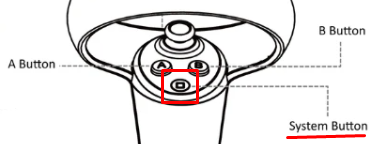
- If the App freezes or becomes inoperable, double click the ‘System’ button and choose ‘Exit’ to restart the scene.
Frequently Asked Questions
The Continue button on the Results Screen is greyed out — why?
The Continue button only becomes interactable after the student has pressed Upload, which saves and uploads their robot to the workshop. If it's disabled, hovering over it will show a tooltip explaining that upload is required first. Direct the student back to the Upload button rather than assuming the app is stuck.
Where do the robots in the Workshop Catalog come from, and why don't all of them show up at once?
Robots are downloaded from the ClassVR cloud via the in-app Workshop Catalog. By default, only the 24 most recently uploaded robots are preloaded when the app opens — more are fetched when a student searches, filters, or reaches the end of the loaded list and presses the next-page button. A pop-up appears during download and clears once it's finished.
How does a student exit the application or reach headset settings?
Double-click the square "system" button on the right-hand controller to bring up the settings menu, which appears alongside the option to exit. Selecting "Exit Application" and confirming with the trigger closes the app.