Delightex Edu is a browser- and app-based 3D/VR/AR creation platform for schools — students and teachers build “Projects” (made of one or more “Scenes”) using a library of 3D assets, building blocks, and visual/text coding, then explore them in several modes including VR on a ClassVR headset. This is a fundamentally different model from AttainXR's pre-built simulations: Delightex ships a creation tool plus a library and lesson plans, not a fixed set of finished experiences.
Setting Up Access to Delightex
For STEM subscribers Delightex is accessed through the ClassVR Portal 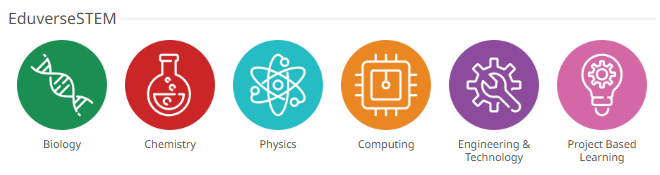
It can also be found in the Other Libraries section at the bottom of the Discover page.
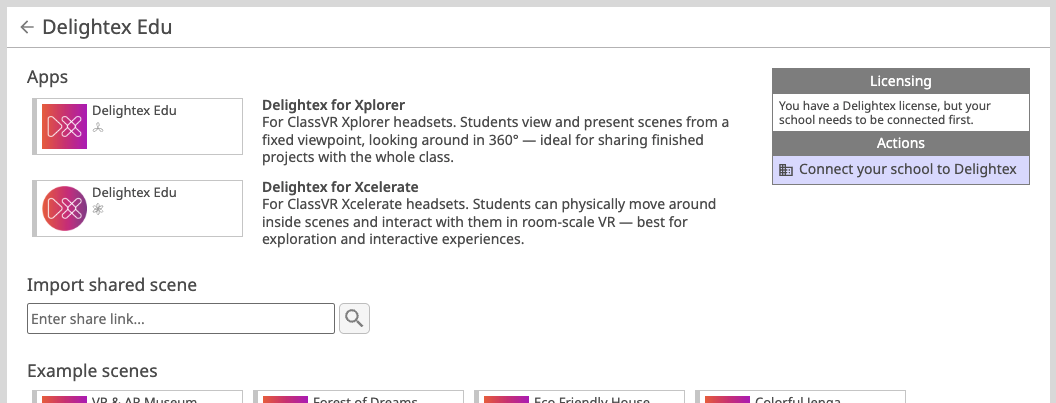
If you have a premium Delightex subscription (included with Eduverse STEM) the channel page will include the Delightex Edu application for Xcelerate headsets and an action panel where you can manage the connection between ClassVR and Delightex.
Clicking on the "Connect your school to Delightex" button starts the account creation process: it creates a new Delightex school account that is associated with your ClassVR school and can be shared by your teachers and students.
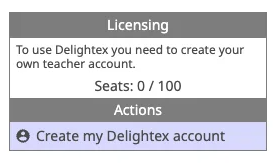
After the account creation is complete the action panel shows the number of seats you have available and gives you the option to claim a seat for your teacher account. This option is available to all teachers in your ClassVR school and is the recommended method for teacher account creation. You could create a teacher account from within Delightex, but it will not be associated with your ClassVR portal account.
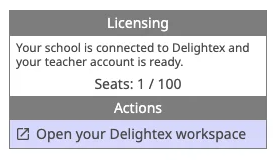
Once the teacher account creation is complete you will see that a seat has been allocated and you now have the option to open your Delightex workspace page. This button automatically signs you in to your account within Delightex so no username or password is required.
Here is an example teacher workspace within the Delightex web portal:
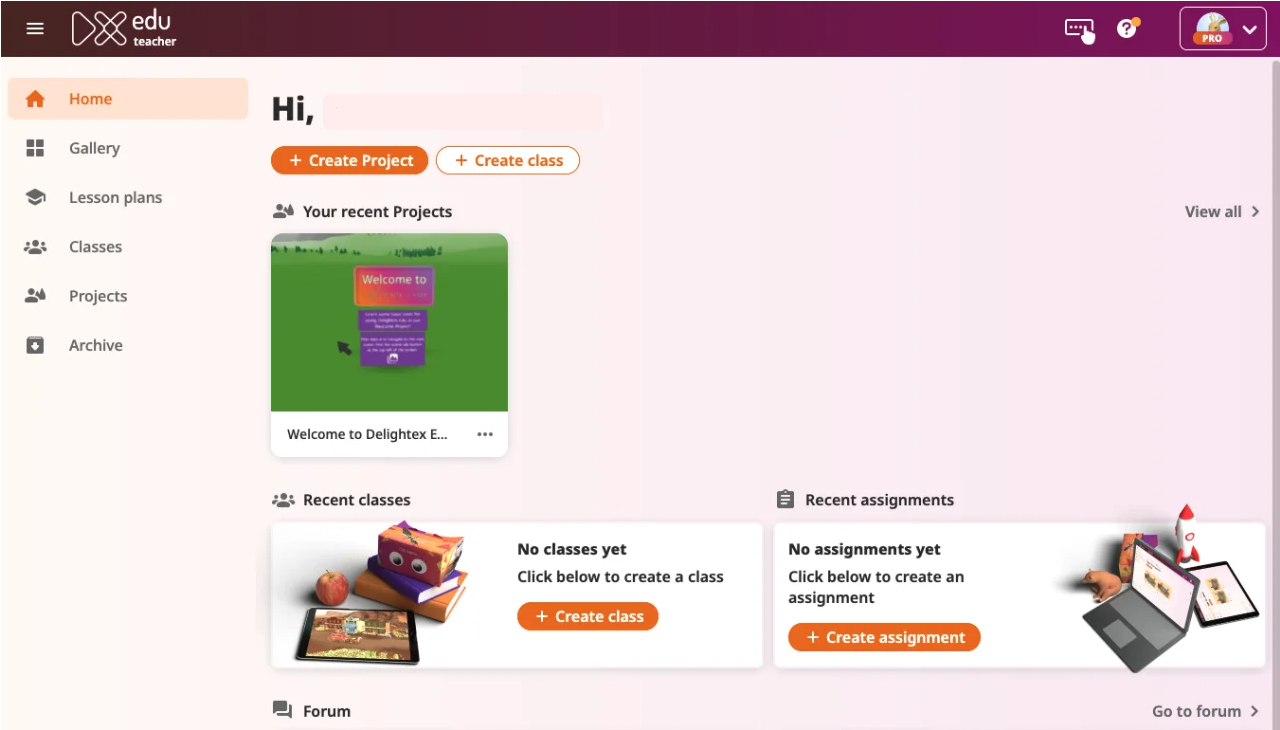
Once you have your teacher account you can create classes and invite students by following the comprehensive Delightex support guides.
Account mapping
Note that the Delightex school accounts created are unique to the ClassVR school they are created from and cannot be managed independently. Similarly, every Delightex teacher account is unique to a ClassVR user within a specific ClassVR school, so if you happen to be a member of multiple ClassVR schools with a Delightex subscription, each Delightex teacher account you create through that school will be unique.
Viewing a Project on a ClassVR headset
Content is authored once (desktop, tablet, or phone) and can then be explored in four ways; VR mode is the one relevant to ClassVR. This is via the playlist function of the ClassVR portal.